Monday, March 4, 2013

Formating Datetime & Date in Microsoft Sql Server


Data formats available in SQL Server.

We will start with the conversion options available for sql datetime formats with century (YYYY or CCYY format). Subtracting 100 from the Style (format) number will transform dates without century (YY). For example Style 103 is with century, Style 3 is without century. The default Style values – Style 0 or 100, 9 or 109, 13 or 113, 20 or 120, and 21 or 121 – always return the century (yyyy) format.

– Microsoft SQL Server T-SQL date and datetime formats
– Date time formats – mssql datetime 
– MSSQL getdate returns current system date and time in standard internal format
SELECT convert(varchar, getdate(), 100) – mon dd yyyy hh:mmAM (or PM)
                                        – Oct  2 2008 11:01AM          
SELECT convert(varchar, getdate(), 101) – mm/dd/yyyy - 10/02/2008                  
SELECT convert(varchar, getdate(), 102) – yyyy.mm.dd – 2008.10.02           
SELECT convert(varchar, getdate(), 103) – dd/mm/yyyy
SELECT convert(varchar, getdate(), 104) – dd.mm.yyyy
SELECT convert(varchar, getdate(), 105) – dd-mm-yyyy
SELECT convert(varchar, getdate(), 106) – dd mon yyyy
SELECT convert(varchar, getdate(), 107) – mon dd, yyyy
SELECT convert(varchar, getdate(), 108) – hh:mm:ss
SELECT convert(varchar, getdate(), 109) – mon dd yyyy hh:mm:ss:mmmAM (or PM)
                                        – Oct  2 2008 11:02:44:013AM   
SELECT convert(varchar, getdate(), 110) – mm-dd-yyyy
SELECT convert(varchar, getdate(), 111) – yyyy/mm/dd
SELECT convert(varchar, getdate(), 112) – yyyymmdd
SELECT convert(varchar, getdate(), 113) – dd mon yyyy hh:mm:ss:mmm
                                        – 02 Oct 2008 11:02:07:577     
SELECT convert(varchar, getdate(), 114) – hh:mm:ss:mmm(24h)
SELECT convert(varchar, getdate(), 120) – yyyy-mm-dd hh:mm:ss(24h)
SELECT convert(varchar, getdate(), 121) – yyyy-mm-dd hh:mm:ss.mmm
SELECT convert(varchar, getdate(), 126) – yyyy-mm-ddThh:mm:ss.mmm
                                        – 2008-10-02T10:52:47.513
– SQL create different date styles with t-sql string functions
SELECT replace(convert(varchar, getdate(), 111), ‘/’, ‘ ‘) – yyyy mm dd
SELECT convert(varchar(7), getdate(), 126)                 – yyyy-mm
SELECT right(convert(varchar, getdate(), 106), 8)          – mon yyyy


In the following post we will create a function to convert datetime to string, follow it

Monday, January 7, 2013

SQL Queries for SharePoint Content Database

We will begin with some of the basic tables:

Features Table that holds information about all the activated features for each site collection or site.
Sites Table that holds information about all the site collections for this content database.
Webs Table that holds information about all the specific sites (webs) in each site collection.
UserInfo Table that holds information about all the users for each site collection.
Groups Table that holds information about all the SharePoint groups in each site collection.
Roles Table that holds information about all the SharePoint roles (permission levels) for each site.
AllLists Table that holds information about lists for each site.
GroupMembership Table that holds information about all the SharePoint group members.
AllUserData Table that holds information about all the list items for each list.
AllDocs Table that holds information about all the documents (and all list items) for each document library and list.
RoleAssignment Table that holds information about all the users or SharePoint groups that are assigned to roles.
SchedSubscriptions Table that holds information about all the scheduled subscriptions (alerts) for each user.
ImmedSubscriptions Table that holds information about all the immediate subscriptions (alerts) for each user.


Some of the common queries that can be used against the content database:
-- Query to get all the top level site collections
SELECT SiteId AS SiteGuid, Id AS WebGuid, FullUrl AS Url, Title, Author, TimeCreated
FROM dbo.Webs
WHERE (ParentWebId IS NULL)

-- Query to get all the child sites in a site collection
SELECT SiteId AS SiteGuid, Id AS WebGuid, FullUrl AS Url, Title, Author, TimeCreated
FROM dbo.Webs
WHERE (NOT (ParentWebId IS NULL))

-- Query to get all the SharePoint groups in a site collection
SELECT dbo.Webs.SiteId, dbo.Webs.Id, dbo.Webs.FullUrl, dbo.Webs.Title, dbo.Groups.ID AS Expr1,
dbo.Groups.Title AS Expr2, dbo.Groups.Description
FROM dbo.Groups INNER JOIN
dbo.Webs ON dbo.Groups.SiteId = dbo.Webs.SiteId

-- Query to get all the users in a site collection
SELECT dbo.Webs.SiteId, dbo.Webs.Id, dbo.Webs.FullUrl, dbo.Webs.Title, dbo.UserInfo.tp_ID,
dbo.UserInfo.tp_DomainGroup, dbo.UserInfo.tp_SiteAdmin, dbo.UserInfo.tp_Title, dbo.UserInfo.tp_Email
FROM dbo.UserInfo INNER JOIN
dbo.Webs ON dbo.UserInfo.tp_SiteID = dbo.Webs.SiteId
-- Query to get all the members of the SharePoint Groups
SELECT dbo.Groups.ID, dbo.Groups.Title, dbo.UserInfo.tp_Title, dbo.UserInfo.tp_Login
FROM dbo.GroupMembership INNER JOIN
dbo.Groups ON dbo.GroupMembership.SiteId = dbo.Groups.SiteId INNER JOIN
dbo.UserInfo ON dbo.GroupMembership.MemberId = dbo.UserInfo.tp_ID
-- Query to get all the sites where a specific feature is activated
SELECT dbo.Webs.Id AS WebGuid, dbo.Webs.Title AS WebTitle, dbo.Webs.FullUrl AS WebUrl, dbo.Features.FeatureId,
dbo.Features.TimeActivated
FROM dbo.Features INNER JOIN
dbo.Webs ON dbo.Features.SiteId = dbo.Webs.SiteId AND dbo.Features.WebId = dbo.Webs.Id
WHERE (dbo.Features.FeatureId = '00BFEA71-D1CE-42de-9C63-A44004CE0104')

-- Query to get all the users assigned to roles
SELECT dbo.Webs.Id, dbo.Webs.Title, dbo.Webs.FullUrl, dbo.Roles.RoleId, dbo.Roles.Title AS RoleTitle,
dbo.UserInfo.tp_Title, dbo.UserInfo.tp_Login
FROM dbo.RoleAssignment INNER JOIN
dbo.Roles ON dbo.RoleAssignment.SiteId = dbo.Roles.SiteId AND
dbo.RoleAssignment.RoleId = dbo.Roles.RoleId INNER JOIN
dbo.Webs ON dbo.Roles.SiteId = dbo.Webs.SiteId AND dbo.Roles.WebId = dbo.Webs.Id INNER JOIN
dbo.UserInfo ON dbo.RoleAssignment.PrincipalId = dbo.UserInfo.tp_ID

-- Query to get all the SharePoint groups assigned to roles
SELECT dbo.Webs.Id, dbo.Webs.Title, dbo.Webs.FullUrl, dbo.Roles.RoleId, dbo.Roles.Title AS RoleTitle,
dbo.Groups.Title AS GroupName
FROM dbo.RoleAssignment INNER JOIN
dbo.Roles ON dbo.RoleAssignment.SiteId = dbo.Roles.SiteId AND
dbo.RoleAssignment.RoleId = dbo.Roles.RoleId INNER JOIN
dbo.Webs ON dbo.Roles.SiteId = dbo.Webs.SiteId AND dbo.Roles.WebId = dbo.Webs.Id INNER JOIN dbo.Groups ON dbo.RoleAssignment.SiteId = dbo.Groups.SiteId AND
dbo.RoleAssignment.PrincipalId = dbo.Groups.ID

-- Query to get all Files by date
SELECT AllLists.tp_Title AS 'List Name',
AllDocs.LeafName AS 'File Name',
AllDocs.[TimeLastModified] AS 'TimeLastModified',
AllDocs.DirName AS 'URL'
FROM AllDocs 
JOIN AllLists 
ON AllLists.tp_id = AllDocs.ListId WHERE AllDocs.[TimeLastModified]>='2012-01-01' AND AllDocs.Type <> 1 AND (LeafName NOT LIKE '%.stp') AND (LeafName NOT LIKE '%.aspx') AND (LeafName NOT LIKE '%.xfp') AND (LeafName NOT LIKE '%.dwp') AND (LeafName NOT LIKE '%template%') AND (LeafName NOT LIKE '%.inf') AND (LeafName NOT LIKE '%.css') 

Sunday, December 23, 2012

Accessing list items using the object model


There are various ways of accessing the List Items (SPListItem) in a List (SPList).

Accessing list items in the same site
SPList.Items foreach
This SPListItem Collection works directly against the underlying SharePoint List (SPList). Any updates made against List Items are updated on the server.

The below code shows enumerating through all List Items in a List.

using (SPWeb web = siteCollection.AllWebs[&quot;webname&quot;])
{
  SPListItemCollection items = web.Lists[&quot;Document Library&quot;].Items;
  foreach (SPListItem item in items)
  {
    Console.Write(item.Title);
  }
}

Iterating on Collection Properties of objects with for loop

Please note that when iterating through a list, to reduce underlying calls to the database, be very careful what property you iterate on. Make sure in this example you do not use:
for(int i; i &lt;= web.Lists[&quot;Document Library&quot;].Items.Count; i++)
{
   Console.WriteLine(web.Lists[&quot;Document Library&quot;].Items[i].Title.ToString());
}
This will cause a new SPListItemCollection object everytime the property is accessed. An example of the performance hit on this would be that if the list had 100 items, you would get 200 hits to the database. By instantiating an SPListItemCollection object outside of the foreach loop reduces this significantly.

SPListItemCollection items = web.Lists[&quot;Document Library&quot;].Items;
for(int i; i &lt;= items.Count; i++)
{
   Console.WriteLine(items[i].Title.ToString());
}
Source: The wrong way to iterate through SharePoint SPList Items by Andreas Grabner

Accessing List Item instances
The below code shows accessing a List Item by its identifier (Int).

using (SPWeb web = siteCollection.AllWebs[&quot;webname&quot;])
{
  SPList list = web.Lists[&quot;Document Library&quot;];
  SPListItem item = list.GetItemById(id);
  Console.Write(item.Title);
}

Performance mini Case Study
Gopinath Devadasshad an issue with this code pattern using GetItemById and noticed a 30 second to 3 second difference in performance compared to using SPQuery (see below).


The below code shows accessing a List Item by it's unique identifier (Guid).

using (SPWeb web = siteCollection.AllWebs[&quot;webname&quot;])
{
  SPList list = web.Lists[&quot;Document Library&quot;];
  SPListItem item = list.GetItemByUniqueId(guid);
  Console.Write(item.Title);
}

MSDN Guidance
Please note that it is advised not to use SPList.Items[System.Guid] and SPList.Items[System.Int32] as mentioned in 'Table 1. Alternatives to SPList.Items on the source referenced below'.
Source: MSDN:Best Practices: Common Coding Issues When Using the SharePoint Object Model

SPList.Items foreach with SPQuery
SPList list = SPContext.Current.Web.Lists[&quot;Contracts&quot;];
SPQuery query = new SPQuery();
query.Query = string.Format(&quot;&lt;Where&gt;&lt;Eq&gt;&lt;FieldRef Name='ID' &#47;&gt;&lt;Value Type='Counter'&gt;{0}&lt;&#47;Value&gt;&lt;&#47;Eq&gt;&lt;&#47;Where&gt;&quot;,&quot;407&quot;);
SPListItem item = list.GetItems(query)[0];
SPList.Items.GetDataTable()
SPListItemCollection.GetDataTable Method (Microsoft.SharePoint)
Returns a copy of the list items as an ADO.NET DataTable, any updates to the DataTable do not affect the underlying SharePoint List (SPList).

using (SPWeb web = siteCollection.AllWebs[&quot;webname&quot;])
{
  SPList list = web.Lists[&quot;Document Library&quot;];
  DataTable table = list.GetItems(list.DefaultView).GetDataTable();
  &#47;&#47;TODO: enumerate DataTable
}

SPList.Items.GetDataTable() with SPQuery
Returns a copy of the list items as an ADO.NET DataTable, any updates to the DataTable do not affect the underlying SharePoint List (SPList).


PortalSiteMapProvider.GetCachedListItemsByQuery
Requires Microsoft Office SharePoint Server (not WSS) using the Publishing feature. Returns a copy of the list items, any updates to the DataTable do not affect the underlying SharePoint List (SPList).

PortalSiteMapProvider psmp = PortalSiteMapProvider.CurrentNavSiteMapProviderNoEncode;
SPQuery query = new SPQuery
{
  ViewFields = &quot;&lt;FieldRef Name='Title' &#47;&gt;&lt;FieldRef Name='ID' &#47;&gt;&quot;,
  Query = &quot;&quot;,  &#47;&#47; replace with your CAML query
  RowLimit = 10
};
SPListItemCollection listItemNodes = _portalSiteMapProvider.GetCachedListItemsByQuery(
((PortalSiteMapNode)psmp.CurrentNode).WebNode,
   &quot;List Title&quot;, query, web);

SPWeb.GetListItem(string url)
The SPWeb.GetListItem method  allows you to retrieve a list item using its URL:

SPListItem listItem = SPContext.Current.Web.GetListItem(listItemUrl);
Such approach for retrieving list items is extremely useful while working with Publishing Pages with elevated privileges:

SPSecurity.RunWithElevatedPrivileges(delegate() {
  using (SPSite site = new SPSite(SPContext.Current.Site.ID))
  {
    using (SPWeb web = site.OpenWeb(SPContext.Current.Web.ID))
    {
      string listItemUrl = SPContext.Current.ListItemServerRelativeUrl;
      SPListItem listItem = web.GetListItem(listItemUrl);
      &#47;&#47; do something with the list item
    }
  }
});

Keep in mind
In spite of being called in the context of a site (web.GetListItem) the GetListItem(string) method requires a server-relative URL in order to retrieve a list item. Providing a site-relative URL will result in a COMException (more information available @ http://blog.mastykarz.nl/inconvenient-spweb-getlistitem-exception-hresult-0x80070001/

List Web Service
See Lists SharePoint Web Service

Accessing list items in multiple sites
Waldek Mastykarz: Performance of content aggregation queries on multiple lists

SPSiteDataQuery
Returns a copy of the list items, any updates to the DataTable do not affect the underlying SharePoint List (SPList).

Source: Chakkaradeep Chandran

StringBuilder queryBuilder = new StringBuilder();
SPSiteDataQuery oQuery = new SPSiteDataQuery();
oQuery.Lists = &quot;&lt;Lists BaseType='1'&#47;&gt;&quot;;
oQuery.RowLimit = 100;
oQuery.Webs = &quot;&lt;Webs Scope=\&quot;Recursive\&quot; &#47;&gt;&quot;;

queryBuilder.Append(&quot;&lt;Where&gt;&lt;Eq&gt;&lt;FieldRef Name=\&quot;UniqueId\&quot; &#47;&gt;&quot;);
queryBuilder.Append(&quot;&lt;Value Type=\&quot;Lookup\&quot;&gt;&quot;);
queryBuilder.Append(&quot;e5d483ac-1c4a-4699-bcd1-dd0bb0455a71&quot;);
queryBuilder.Append(&quot;&lt;&#47;Value&gt;&lt;&#47;Eq&gt;&lt;&#47;Where&gt;&quot;);

oQuery.Query = queryBuilder.ToString();

DataTable dtResult = web.GetSiteData(oQuery);


More on SPSiteDataQuery
SPSiteDataQuery Samples for WSS v3.0

CrossListQueryCache
Uses the same caching functionality as the Content Query Web Part and similarly requires Microsoft Office SharePoint Server 2007 Standard minimum. Returns a copy of the list items, any updates to the DataTable do not affect the underlying SharePoint List (SPList).

CrossListQueryInfo clqInfo = new CrossListQueryInfo();
clqInfo.Webs = &quot;&lt;Webs Scope='SiteCollection'&#47;&gt;&quot;;
clqInfo.Lists = &quot;&lt;Lists ServerTemplate='101'&#47;&gt;&quot;;
clqInfo.ViewFields = &quot;&lt;FieldRef Name='Title' &#47;&gt;&lt;FieldRef Name='ID' &#47;&gt;&quot;;
clqInfo.Query = &quot;&quot;; &#47;&#47; replace with your CAML query
clqInfo.RowLimit = 10;
clqInfo.UseCache = true;

CrossListQueryCache clqCache = new CrossListQueryCache(clqInfo);
DataTable resultsTable = clqCache.GetSiteData(SPContext.Current.Site);

Query context
David Crabbe explains that only the current site collection can be queried using CrossListQueryCache.

Caching
Jeff Dalton has found that only GetSiteData methods using SPSite parameters are cached (not SPWeb).

MSDN references
CrossListQueryInfo
CrossListQueryCache

Search
Returns a copy of the list items, any updates to the DataTable do not affect the underlying SharePoint List (SPList).


External Links
White Paper: Working with large lists in Office SharePoint® Server 2007 - Extremely good white paper showing the differences in performance of various methods of accessing lists with graphs to prove it!
Measure 48,000 times; Cut once by Scott Singleton Great post on performance based on method used to access List Items.


Original Post by: Jeremy Thake

Monday, November 19, 2012

Convert column data type from multiline to single line in SharePoint 2010


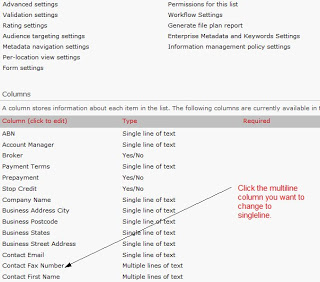
If you create a SharePoint list by importing a spreadsheet you will find that in SharePoint 2010 all free text columns are converted to the multiline data type by default.

This is a problem if you want to filter the multiline columns in a list by clicking on the column heading because column filtering will only work if the column is a single line data type.

So to change a multiline data type column to a single line do this:

1.  Browse to the "List Settings" for the list.

2. Click on the multiline column:


3. Change the Rich Text property to Plain text and press OK. Press OK again when warned:

4. Select the same column again as in step 2.

5. You should now see an option to change the data type to Single line of text. Press OK when done and press OK to the warning:


You can also do this in SharePoint 2010 Designer but you must first change the Rich text setting to Plain text and save the changes, then change from multiline to single line, click off the column, OK the warning then save again.

Thursday, November 8, 2012

How to get database records for last 7 days date or last week only


To get the records for the last 7 days, it would be something like:

select RecordDate, Id
from your_table

where RecordDate > DATEADD(day, -7, GETDATE())

To get the records for the last week only (within the last week not last 7 days)


select RecordDate, Id
from your_table

where RecordDate > DATEADD(day, -7, GETDATE())
and DATEPART(week, RecordDate) = DATEPART(week, GETDATE())


This query will return all records having a date later than 7 days before current date/time.

If you don't want the hours to be taken into account, then try something like this (works only on 2008 due to date datatype cast):

select RecordDate, Id
from your_table
where RecordDate > DATEADD(day, -7, cast(GETDATE() as date))
and DATEPART(week, RecordDate) = DATEPART(week, GETDATE())

Here's the version without the hours for 2005:

select RecordDate, Id
    from your_table
    where RecordDate > DATEADD(day, -7, CONVERT(datetime, CONVERT(char(10), GETDATE(), 
101)))
and DATEPART(week, RecordDate) = DATEPART(week, GETDATE())


That's it :)

Sunday, November 4, 2012

Column and View Permissions in SharePoint 2010


Recently I ran into a codeplex webpart that allows you to specificy column and view permissions for SharePoint 2010.

View permissions disable access to some views on a SharePoint Library or list, and the column permissions hide or set columns to ReadOnly for specified groups. Column permissions work on normal list views, where authenticated users will see columns. Column permissions also apply on the three default SharePoint aspx pages:

EditForm.aspx
NewForm.aspx
DisplayForm.aspx

This feature can be downloaded from http://spcolumnpermission.codeplex.com/

Install instructions and a more in depth description is given on the site. Below is a screenshot from list settings page where the view and the column permission for a list/library can be set up/configured


This Solution is only for SharePoint 2010!

Features:
Column Permission

- Hide or Read Only Columns in a List Forms (New/Edit/Display)
- Hide Columns in Views
- Hide Columns in Alert Me Emails
- Specify the permission for Users, SharePoint Groups or Active Directory Groups
View Permission
- Disable Views
- Hide Views in Context Menus
- Automatically Disable Views in Custom WebPart Zones
- Specify the permission for Users, SharePoint Groups or Active Directory Groups

Column Permission:
1. After successful Installation and Activation on Site Collection you will see two new links in your List/Document Library Settings page.


Wednesday, October 3, 2012

Top 10 SEO tips for bloggers


From years of experience in operating mainly WordPress-based blogs, I have learned valuable lessons on how to optimize blogs for search engines and increase traffic to the sites. Here are my Top 10 SEO tips for bloggers; I hope these insightful tips can help improve your blog’s SEO.

1. Conduct proper keyword research and use keywords in your title and content. The title in your home page is the most important place to feature your most important keywords. When you post new articles, keep in mind that most blog platforms will make your article title the HTML title tag as well. Therefore, create your titles with keywords you want to target.

2. Be familiar with your blogging platform to use built-in SEO features. Install additional SEO pluggins. For WordPress, "All in One SEO" or "Platinum SEO" is recommended. They offer many settings that help to create a more SEO-friendly site.

3. Use SEO-friendly URLs. Basically adding keywords in your URLs is a good idea. In WordPress, this is done by turning on a function called "Permalinks."

4. Write original content. Do not copy content from other sites, and if you do, make sure to rewrite it completely to make it your own. More often than not, duplicate content gets filtered by the search engines.

5. Write blog posts on a regular basis and cover the latest topics and trends, which tend to get more traffic while they are hot. Fresh content is part of Google's algorithm.

6. Optimize your image names and alt tags to include keywords for better placement in the image search portion of the search engines.

7. Publish links to your posts on social media sites like Facebook, Twitter and LinkedIn. Also, submit them to social bookmarking sites such as StumbleUpon and Reddit. Social media involvement and links are good for SEO purposes.

8. Build links to your main page and internal posts. If you own several blogs, try to find similar posts and link them to each other.

9. Write guest blog posts on similar sites for link building purposes. A good way to do this is to ask other bloggers to exchange articles, with guest blog credits. You can also participate in link exchange with other bloggers from blogrolls, but in general try to not have too many outgoing links from your own blogroll, as it may reduce the value of your website.

10. Go easy on importing RSS feeds into your blog. While it could be a good source for additional content, you want the majority of your content to be original. If you’re going to use RSS feeds, I recommend keeping it to less than 10 percent of your overall content. If your regular content does not keep up with that ratio, then remove old RSS posts regularly. There was a time when the "Autobloged" plugin for WordPress was being used by many bloggers, or I should say spammy bloggers, with great success. Sites would receive a massive amount of content in little time and would end up getting hundreds of rankings. However, the Panda update makes this difficult.

While there are many more tips I can share with you, the ones I mentioned are my top ten. I hope you enjoyed the article and that the tips can help you to improve your rankings.